Projection whiteboard
Do you project in class? The whiteboard brings all your classroom tools together on one screen: timer, traffic light, noise level, random picks… and your presentation.
What’s said in the video
Do you project in class? The whiteboard brings all your classroom tools together on one screen: timer, traffic light, noise level, random picks… and your presentation. Tap “Toolkit”… in “Storytelling & content”, choose “Projection whiteboard”… and tap “Open”. Each tool is a card. You hit play on the timer… the traffic light shows when they can talk… and “Who will it be?” picks a student at random. From the bar on the left you add text, images or videos… and under “More” there are many others, like a dice. With “Save”, your whiteboard is saved in the class… and with “Load” you bring it back next lesson. To present, clear it with “Clear” and tap “Upload your presentation”: pick your PDF or PowerPoint. The slides fill the screen, and at the bottom you have the timer and the random student right at hand. With “Project”, it goes full screen. A tip: set up your whiteboard before class… and when you walk in, just tap “Project”. Alquie, your class, an adventure.
More from Mechanics
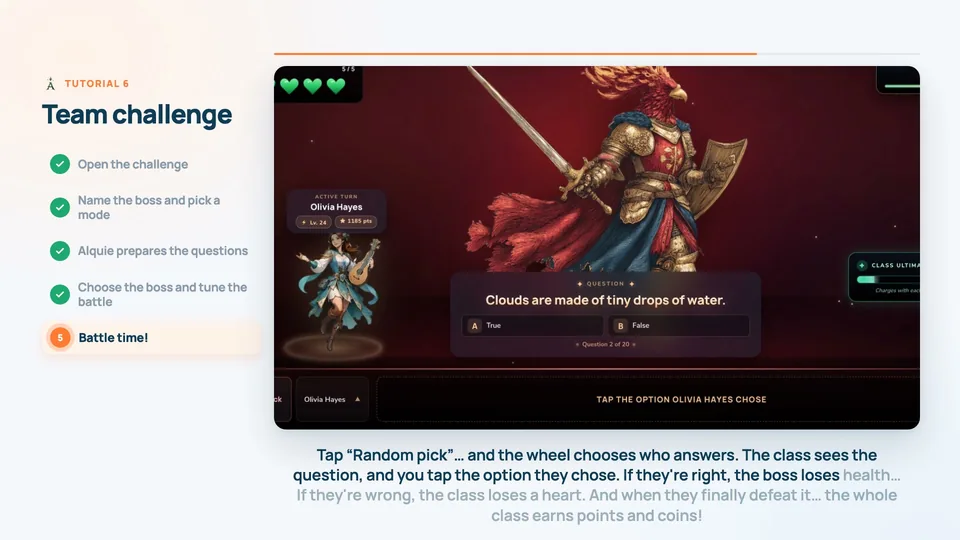 1:34 Team challengeThe whole class beats one boss.
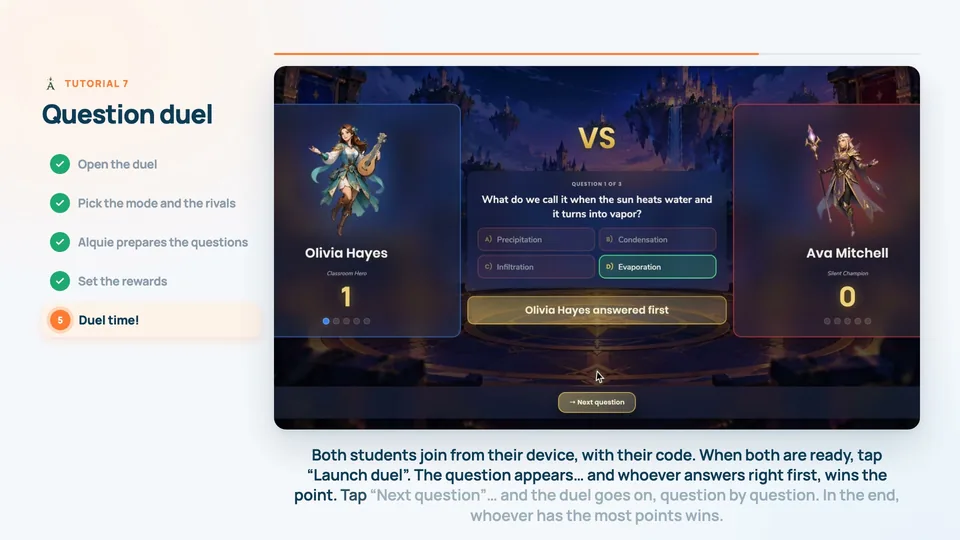 1:33 Question duelTurn-based, one against one.
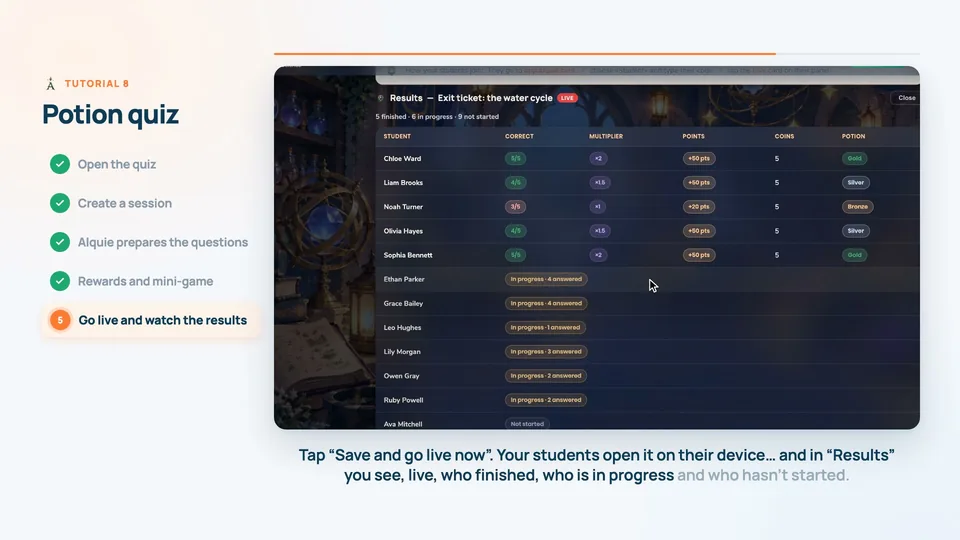 1:13 Potion quizEach student answers on their device.
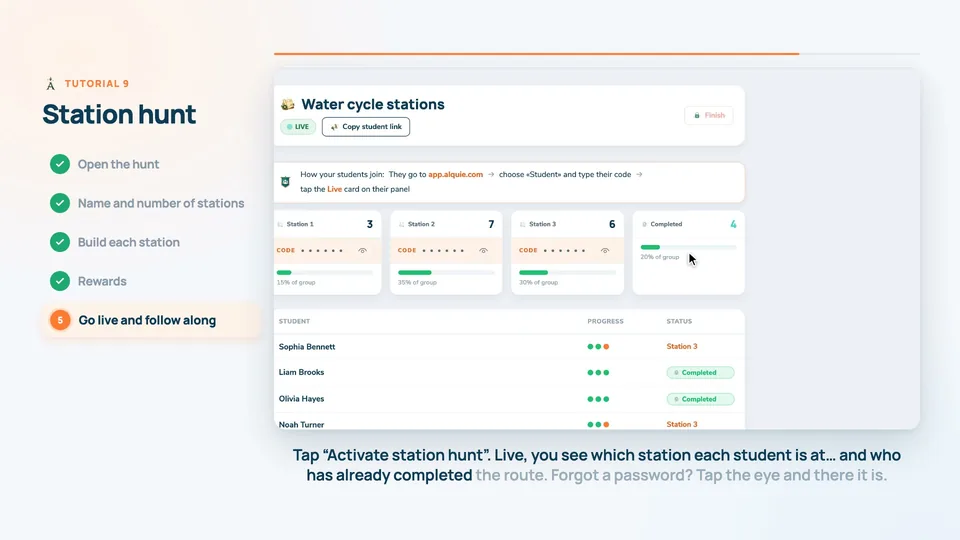 1:23 Station huntStation-based work, more fun.
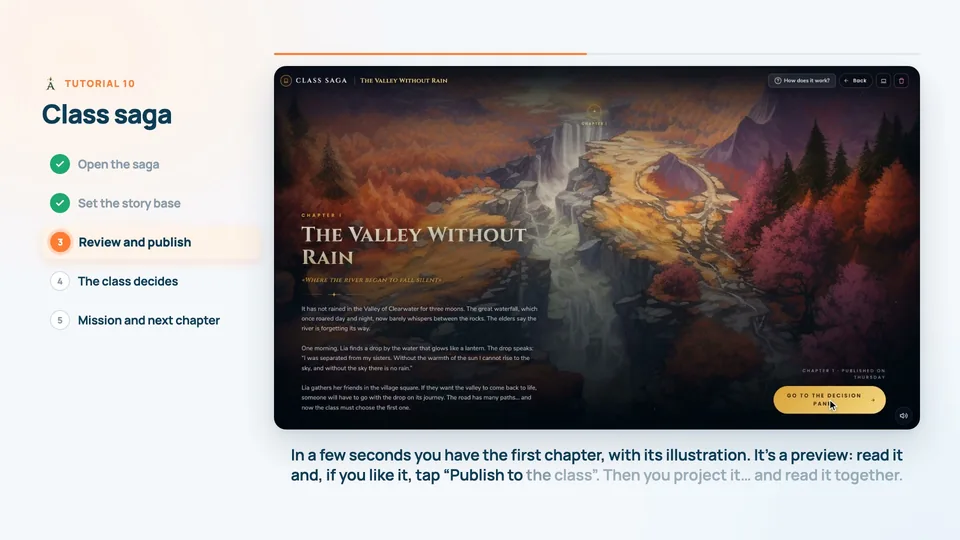 1:27 Class sagaA tale the class builds all year.
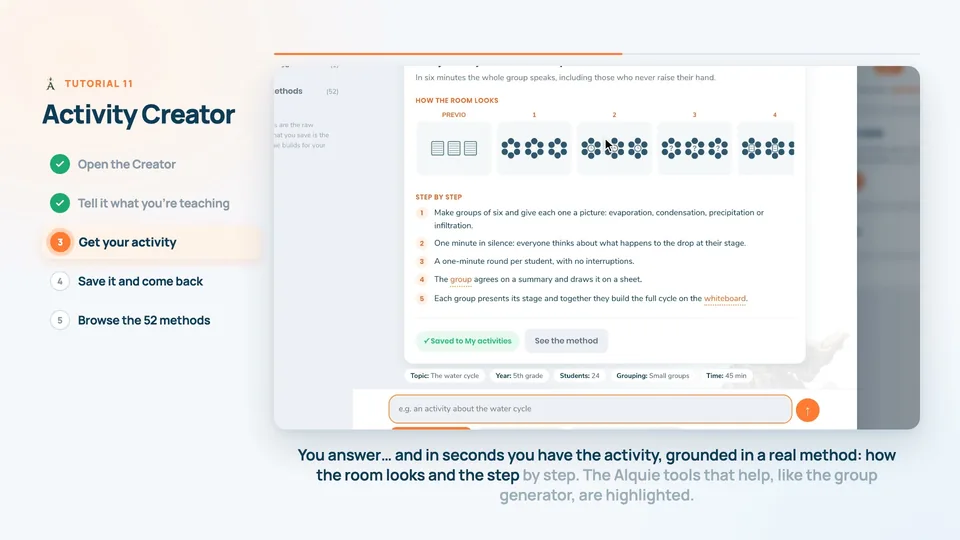 1:09 Activity CreatorWhat to do when nothing comes to mind.
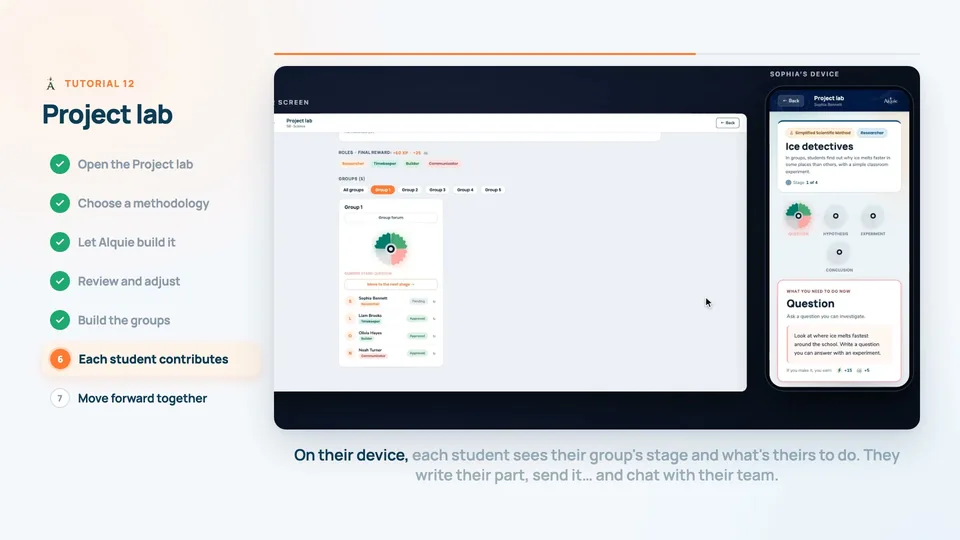 1:32 Project labPBL, Design Thinking, inquiry.
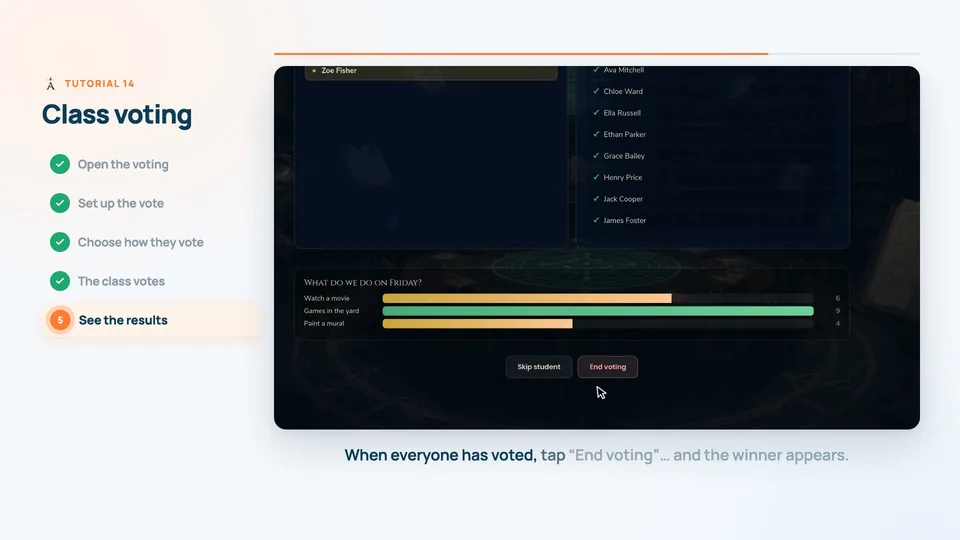 1:04 Class votingClass decisions by secret ballot.
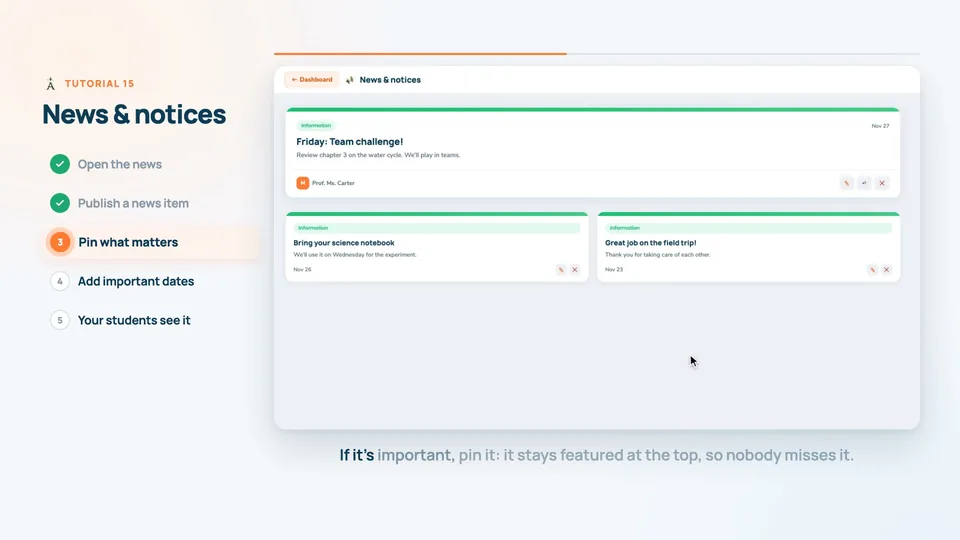 0:55 News & noticesClass communication, no WhatsApp.
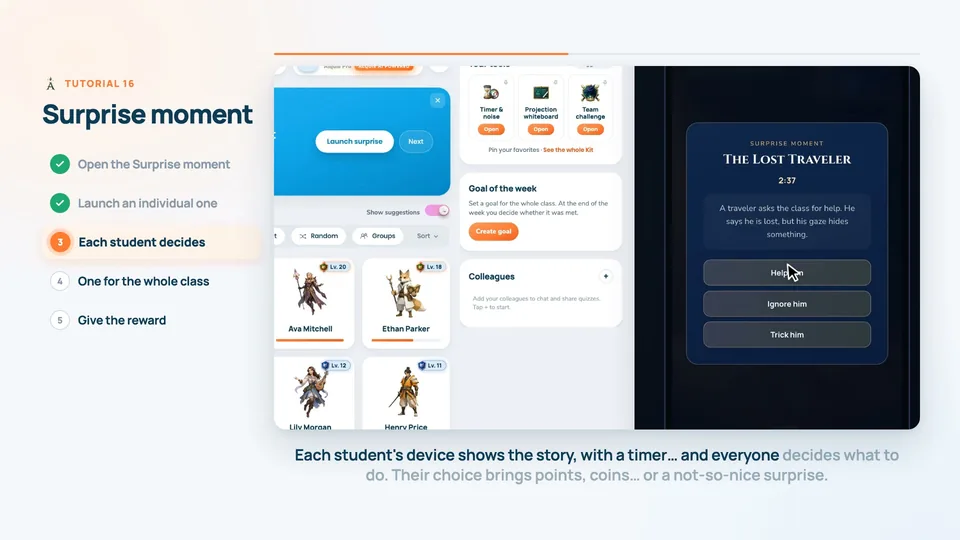 1:07 Surprise momentTo re-energize the class.
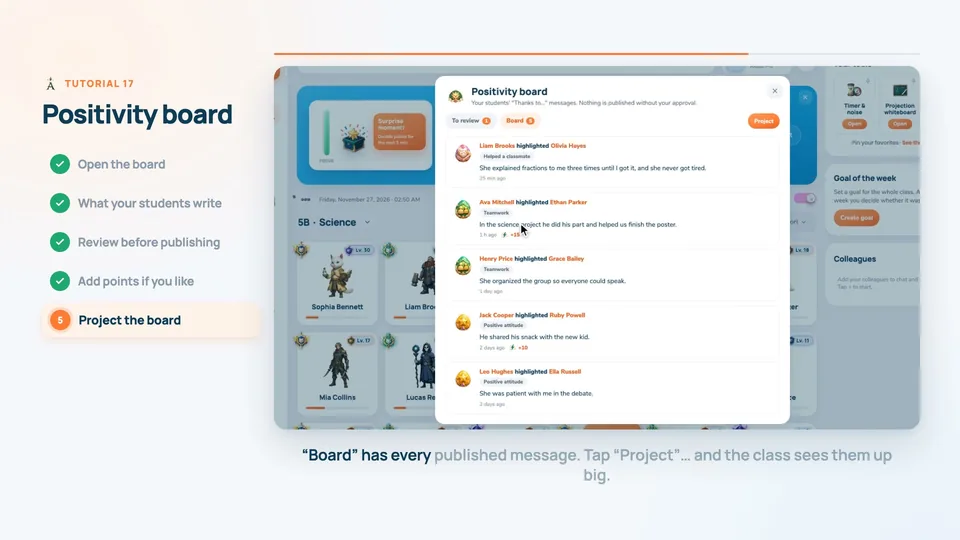 1:00 Positivity boardThank-yous between classmates.
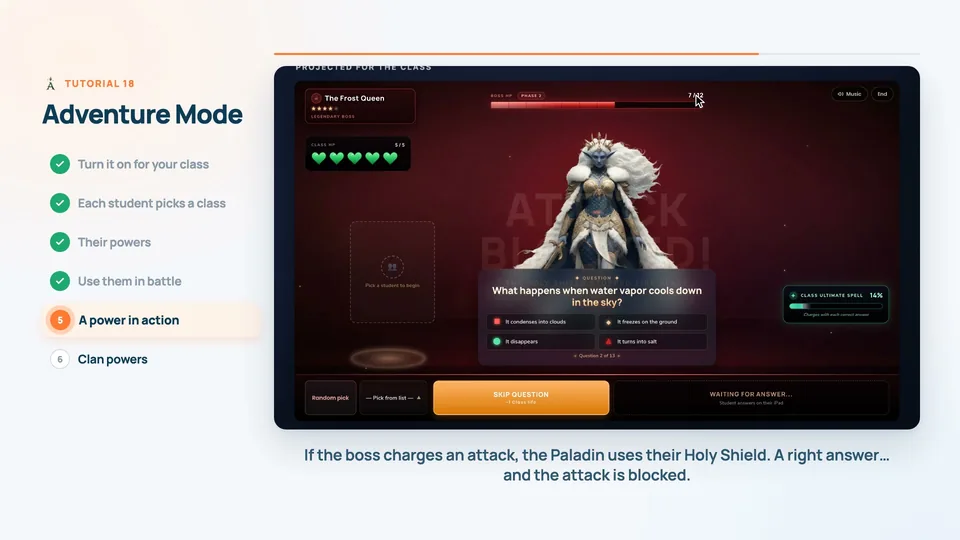 1:24 Adventure ModeTeam roles with powers: Paladin, Healer or Striker.